![Growficient_donkergroen copy.png]](https://help.growficient.com/hs-fs/hubfs/Growficient_donkergroen%20copy.png?height=40&name=Growficient_donkergroen%20copy.png)
- A Heatmap tile lets you add a heatmap to your dashboard
- In the Dashboard edit screen, click on the 'Create: Tile' button and choose a 'Heatmap' tile
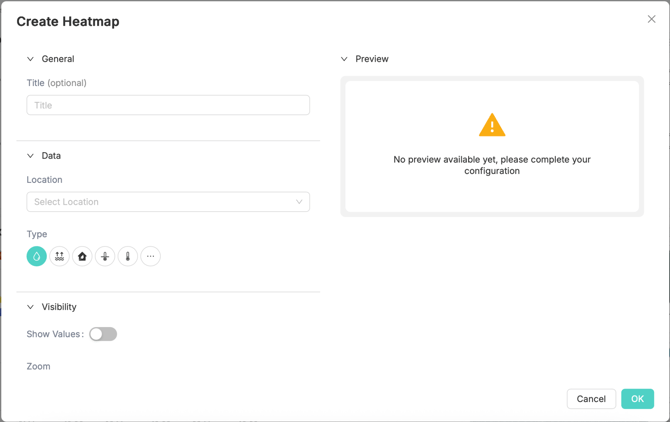
- You can fill in a name for the tile under 'Title'
- Under the 'Data' tab, you can select which data you would like to show in the tile
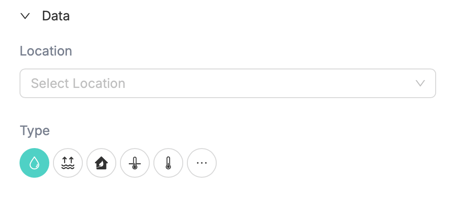
- You can select the location from the location drop down menu
- You can include compartments, sections, and placements
- The location's coordinates will be used to determine the center of the heatmap
- Under 'Type' you can choose what measurement type you want to show in the heatmap
- You can select a custom mix of any of the measurement types that you have available on your regular Growboard
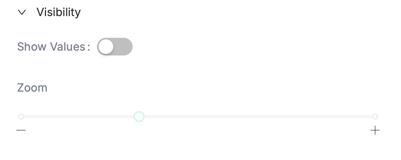
- You can choose to show accurate values on the map with the 'Show values' toggle under 'Visibilty'
- You can zoom in and out on the heatmap via the Zoom slider
- The 'Preview' field shows a real-time preview of the table you are creating
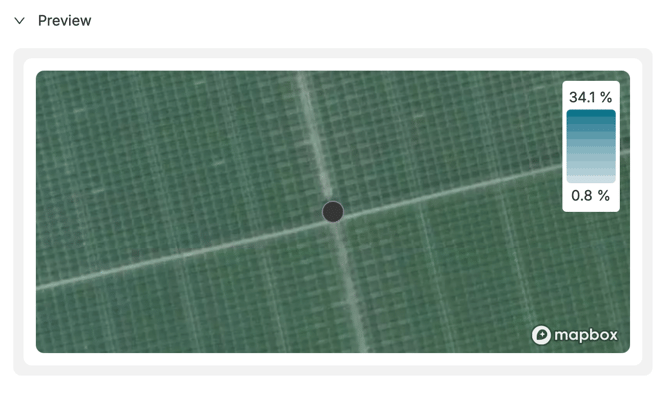
- Click on 'OK' to add the tile to the dashboard
Note! Make sure to click 'Save' before exiting your dashboard. Changes are not automatically saved.