![Growficient_donkergroen copy.png]](https://help.growficient.com/hs-fs/hubfs/Growficient_donkergroen%20copy.png?height=40&name=Growficient_donkergroen%20copy.png)
You can reuse a sensor in a new placement while keeping all previously collected data in the original placement.
This method is recommended when starting a new project, trial, or growing cycle, and when there is a change in the set up or number of varieties. With this method, collected historical data remains linked to the original placement. The new placement will only show data collected from the moment of reassignment.
Step 1: Create a new sublevel for placement
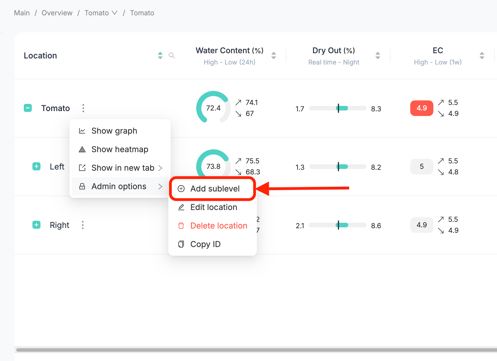
First, you will need to create the sublevel where the sensor will be connected. Sensors can only be connected to a placement.
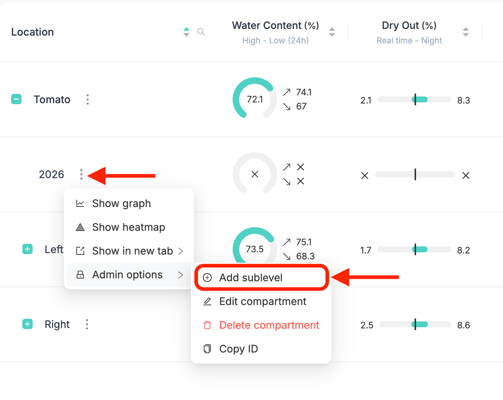
You need to open the full cascade of Location→ Compartment → Section → Placement to connect a sensor. If this is not yet the case, create the required sublevels before proceeding.
-
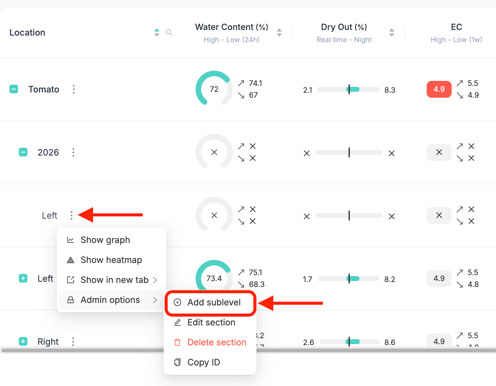
Navigate to Location → ⋮ (three dots) → Admin options → Add sublevel
-
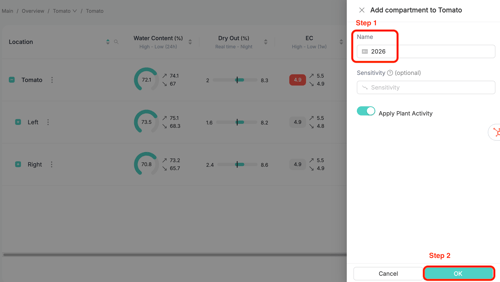
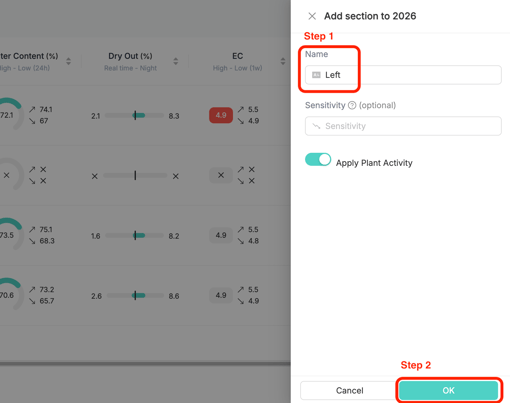
Name the new sublevel
-
Click 'OK'
Repeat this step until you have at least two sublevels under your location, a compartment and a section.
Step 2: Connect the sensor to the designated new placement
-
Add placement from the 'Add sublevel' button
-
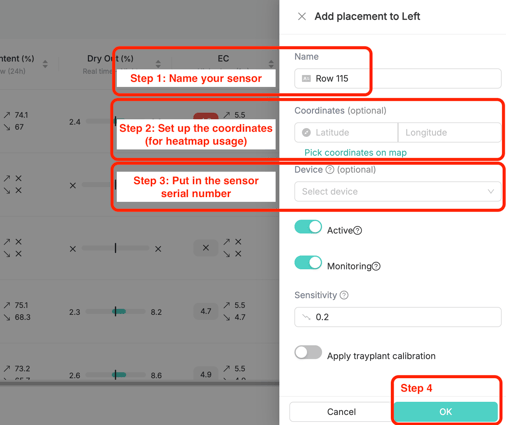
Enter a name for the placement
-
Optional: Select the coordinates for your sensor
-
Enter the serial number of the sensor you want to move to this placement
-
Click 'OK'
Step 3: Confirm the reassignment
A confirmation message will appear indicating that:
-
The device will be disconnected from its current placement
-
The device will be connected to the new placement
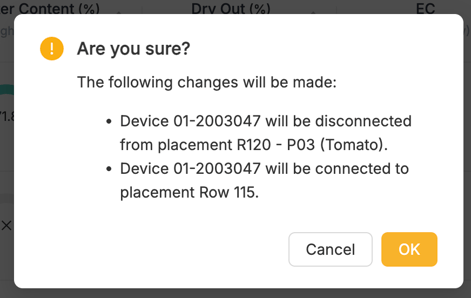
Click 'OK' to confirm.
Done! The sensor is now connected to the new placement.
Key details
- All historical data remains in the original placement
- The new placement will only display data collected after reassignment
- New data will become visible approximately 5-10 minutes after reassignment
- This method is recommended when starting a new project or trial with the same sensor
If you are restructuring your Growboard and want the complete data history to move together with the sensor, please refer to our guide on Moving the sensors with their data