![Growficient_donkergroen copy.png]](https://help.growficient.com/hs-fs/hubfs/Growficient_donkergroen%20copy.png?height=40&name=Growficient_donkergroen%20copy.png)
This article explains how to set up your Growboard in order to use Custom dashboards. With the Custom dashboard you can set up your own, personalized dashboard/overview page using all the functionalities of your usual Growboard.
This function allows you to easily compare data between varieties or greenhouses, compare dry out in different seasons, have the most crucial values immediately visible, and a lot more.
Getting started with Custom Dashboards
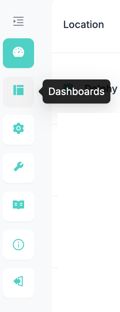
- Open the Custom dashboard overview by clicking the “Dashboard” button in the left menu bar. If you do not see this button, please contact support@growficient.com to receive access to the Custom Dashboard.
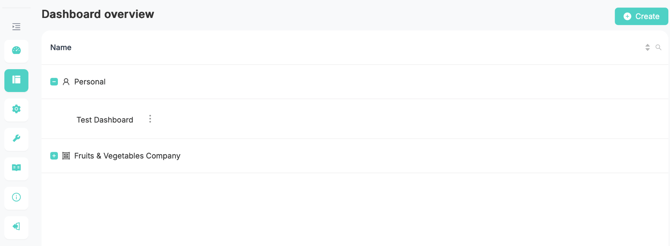
- Here you will see your own dashboard overview, both personal and company dashboards
- Personal: These are dashboards only you have access to.
- Company: These are dashboard that are visible for all employees in the company.
- If this option is not available you are not connected to or have access to a company. See for more information Company Management.
-
You can open a dashboard by opening either personal or company from the plus-icon, and clicking on the name of the dashboard you want to access
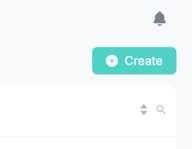
- Click on the 'Create' button in the top right corner to make a new dashboard
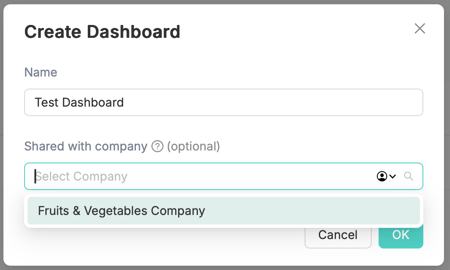
- Enter the dashboard name and select your company
- If no company is selected (or available) the dashboard will be stored in your personal dashboards
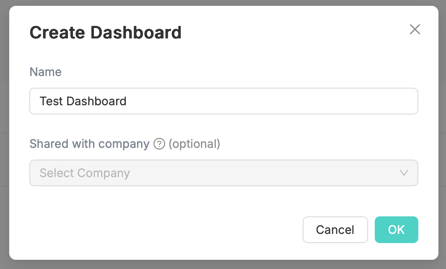
- If you have company access, you can also select the company corresponding to the new dashboard
- The dashboard will then be visible for all members of that company
- Depending on the company selection, your new dashboard will now be stored either under personal or your company dashboard
- Click on the dashboard name to start editing
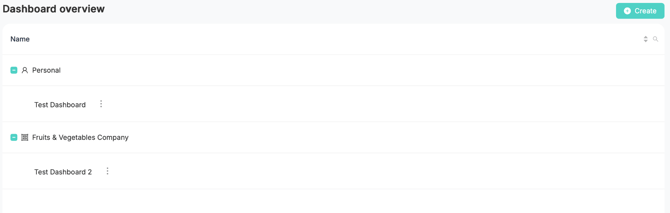
- Tip: You can copy dashboards from your personal dashboard to the company dashboard
- This makes it easier to first design and test your dashboard before making it visible for all members of the company
- You are now ready to design your first dashboard, check this page for more guidance